If you have ever started a game and wondered which keys to press, you are not alone. Keyboard controls can look like a random collection of letters at first, but most games follow a small set of shared conventions. Once you know them, you can pick up almost any keyboard game within seconds. This guide explains the most common layouts and why they work the way they do.
Arrow keys: the classic choice
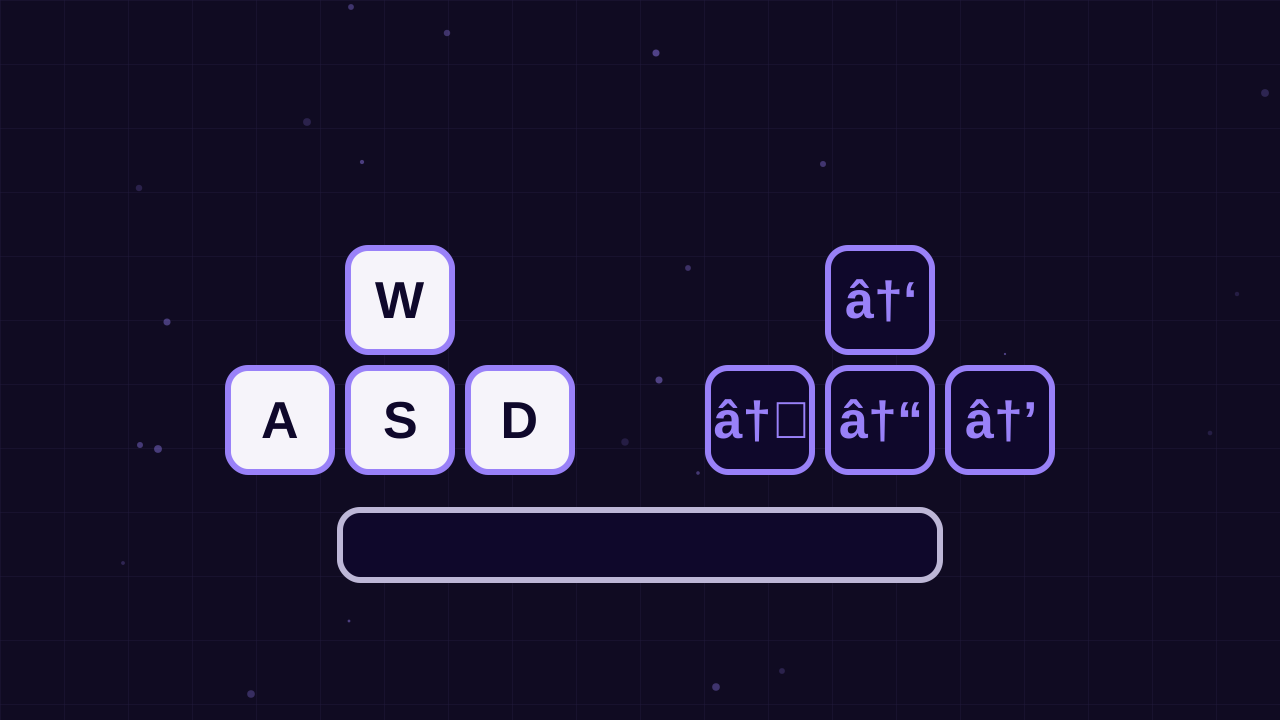
The four arrow keys are the most intuitive way to move. Up moves forward or jumps, down moves back or crouches, and left and right steer. Many simpler games, including platformers, runners and puzzle games, use the arrows as their main controls. They are easy to find without looking and make sense to new players straight away.
Why WASD is so popular
Many games use the letters W, A, S and D instead of, or as well as, the arrow keys. Look at your keyboard and you will see why: these four keys form the same shape as the arrows, with W on top and A, S and D below. W moves up or forward, A moves left, S moves down or back and D moves right.
The advantage is comfort. When your left hand rests on WASD, your fingers can easily reach nearby keys such as Shift, Space, Q, E, R and F. That leaves your right hand free for the mouse, which is perfect for games where you move with one hand and aim with the other. Shooters, 3D adventures and driving games often use this setup.
Some games accept both WASD and the arrows, so you can choose whichever feels better. Two player games on one keyboard often give one player WASD and the other the arrow keys, which is a neat way to share a single device. Our article on two player games on one device covers this in more detail.
Space bar
The space bar is the largest key on the keyboard, which makes it ideal for the most frequent action. In platform and runner games it is usually jump. In shooters it might fire or dash, and in driving games it often works as a handbrake or a drift button. Because it is so easy to hit, game designers save it for actions you need quickly and often.
Shift and Ctrl
Shift is commonly used for sprinting, boosting or using nitro, because it sits right beside your little finger when your hand is on WASD. Ctrl, just below it, is often used for crouching or sliding. Some games swap these around, so a quick look at the controls section on the game page is always worthwhile.
Letter keys near WASD
The keys surrounding WASD are prime real estate for extra actions:
- E is very often interact, use or pick up.
- Q frequently switches weapons or uses a special ability.
- R usually reloads or restarts a level.
- F is common for actions, abilities or throwing an item.
- G often throws a grenade or drops something.
These are conventions, not rules, but you will meet them again and again.
Number keys
The row of number keys along the top of the keyboard is typically used to choose between options, such as switching weapons, picking an upgrade or selecting a tool. Pressing 1 selects the first item, 2 the second and so on. It is a fast alternative to clicking on a menu.
Escape and P
Escape, often shortened to Esc, is the universal pause or back key. It usually opens the pause menu, closes a window or leaves full screen. Many games also use P for pause, which is handy because it is easy to reach with your right hand. If you need to step away quickly, one of these two keys almost always works.
Enter
Enter is commonly used to confirm a choice, start a game from a menu or restart after a game over. In some two player games it doubles as the second player's action button.
The mouse alongside the keyboard
In many games, the keyboard handles movement while the mouse controls the camera or aim. Moving the mouse turns your view, the left button fires or interacts and the right button might aim more precisely or perform a secondary action. The mouse wheel sometimes switches weapons or zooms the camera.
Make sure the game is listening
If key presses do nothing, click once inside the game area before you start. Browsers send keyboard input to the active part of the page, and this simple click makes the game the active element. It is the most common reason keyboard games appear not to respond.
Tips for comfortable keyboard play
- Rest your fingers on the keys you use most so you can react without looking.
- Keep your wrists relaxed and level rather than bent upward.
- If a game supports both WASD and arrows, try each and pick the one that feels natural.
- Read the controls section on each game page before your first attempt.
Practice with a simple game
A great way to get used to keyboard controls is to start with a game that uses only a few keys, such as a platformer that needs the arrows and the space bar. Once that feels natural, try a game that uses WASD with the mouse. You will find plenty of options in the Arcade and Action categories. With a little practice, your fingers will find the right keys automatically, and you can focus entirely on enjoying the game.